Skip to content
BrickOps

BUILT FOR BRICK SELLERS

Your brick business.
One place
to run it.

Manage your inventory, find every part, and work through orders—with tools built for BrickLink and BrickOwl sellers.

No signup needed. Explore with sample data.

THE LITTLE BRICK STORESample workspace

Inventory & storage

A place for every piece.

Brick 2 × 4 · Red
3001 · Red · New

Brick 2 × 4

Main wall / Cabinet A / 1A
120in stock

CHOOSE A DRAWER

Select a drawer to explore. Dots mark stored stock.

CONNECTED STOCK

BrickOps120
BrickLink116
BrickOwl120
1 linked update to review

Drawer 1A: Brick 2 × 4, Red, 120 in stock. 1 linked update to review.

Make a change. See everything connect.

One inventory at the center.
Your whole workday connected.

FROM THE FIRST PIECE TO THE LAST PACKAGE

Everything has a place.
Including your next step.

01 / KNOW WHAT YOU HAVE

One stock record.
Wherever you sell.

Keep quantities, prices, and storage assignments together in BrickOps. See which linked listings need attention without maintaining a separate picture of your stock in every tool.

  • Find parts, sets, and minifigures in the catalog.
  • Add stock and correct counts with a reason.
  • Review BrickLink and BrickOwl quantity updates.
Explore inventory
InventorySample stock
526 pieces in one inventoryBrickOps is the source
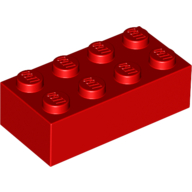
3001
Brick 2 × 4

3001 · Red

BrickLink needs syncBrickOwl synced
120in stock
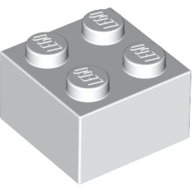
3003
Brick 2 × 2

3003 · White

BrickLink syncedBrickOwl synced
84in stock
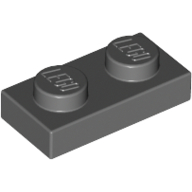
3023
Plate 1 × 2

3023 · Dark Bluish Gray

BrickLink syncedBrickOwl synced
260in stock

One stock record, with each channel’s listing status alongside it.
02 / KNOW WHERE IT IS

From wall to drawer.
From drawer to order.

Give every part a physical home. When it’s time to pick, see the piece, the quantity, and the compartment together.

  • Map walls, cabinets, drawers, and nested dividers.
  • Save layouts for the way you use each device.
  • Follow a storage-based route and keep picking progress.
Explore storage & picking
Picking · #1042Sample order
  1. Main wall
  2. Cabinet A
  3. Drawer 1A
Red Brick 2 × 4

Lot 1 of 3 · #3001

Brick 2 × 4

Red

4pieces to collect

The part, the quantity, and its exact compartment. Together.

03 / KNOW WHAT’S HAPPENING

A clear next task.
A history behind it.

Start with the orders that need you today. Look back at the stock changes and sales that brought your store here.

  • Keep paid, in-progress, and shipped orders organized.
  • Trace stock movements in the inventory ledger.
  • Explore sales trends, best sellers, and destinations.
Explore orders & reports
Reports / Best sellersSample month
36orders in the period
2,650pieces ordered
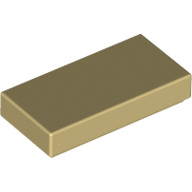
Tile 1 × 2 with Groove

Tan · BrickOwl

405 sold
Plate 1 × 2
Plate 1 × 2

Dark Bluish Gray · BrickOwl

402 sold

Explore the orders behind the totals. Keep currencies separate.

TRY ONE CONNECTED WORKDAY

Follow the pieces.
See the whole picture.

Start with a delivery, put the stock in its place, then work through a sample order. Your changes stay connected as you explore the full demo.

  1. 01 / INVENTORY

    Receive your stock

    Add 24 red bricks. See the sample balance move from 120 to 144.

  2. 02 / STORAGE

    Find its drawer

    Main wall → Cabinet A → 1A. The same stock, in its physical home.

  3. 03 / PICKING

    Work through an order

    Follow the storage route. Confirm each pick and keep your place.

  4. 04 / HISTORY

    Follow the history

    Review the receipt and its reason in the ledger. Explore order history in reports.

Try the 24-brick delivery

A fresh fictional store. Nothing is saved to your account or sent to a marketplace.

DESK TO STOCKROOM

Plan at your desk.
Find it on your phone.

Use visual layouts for the big picture, then browse compartments and focus on one pick at a time on a smaller screen.

Owner, editor, and picker roles help each person focus on the work they need to do.

Try focused picking

BEFORE YOU STEP INSIDE

Your store.
Your control.

Is this the real BrickOps interface?

The demo shares the app’s navigation, dashboard, inventory, storage browser, order queue, picking card, and reports. The homepage shows focused examples from those tools. All stock, orders, and sales figures are fictional.

Will trying it change my inventory?

No. Homepage examples and the full demo are separate, temporary sample sessions. Reloading starts fresh. Neither changes your real inventory or contacts your marketplaces.

How do BrickLink and BrickOwl fit in?

BrickOps is where you manage stock. Channel connections let you review linked quantities and supported marketplace updates. Available actions depend on the channel, item type, and verified mappings. The public demo simulates quantity sync only.

What can I explore in the demo?

Receive stock, browse compartments, pick a sample order, and explore the ledger and reports. Storage layouts are browse-only. Layout editing, real connections, shipping, and team administration belong to the full app.

How does order history build up?

History starts with new orders captured after connection and capture are enabled; older orders are not imported. Captured history is retained indefinitely, with up to five years visible in reports. Reports keep country and region insights without saving customer names, emails, or street addresses in that history.

YOUR NEXT WORKDAY, CONNECTED

Make yourself
at home in BrickOps.

Try the workspace Join the beta →